


Previewing the Checkout Process
In this article
- Previewing the checkout page in your editor
- Placing a test order
- Get personalized checkout tips
- FAQs
You can preview the checkout process before you launch your site to see exactly what customers experience when they make a purchase. This helps you check the flow, spot issues, and make any changes before you go live.
Previewing the checkout page in your editor
Before previewing checkout, you need to:
- Upgrade your site to a Premium plan or Studio plan.
- Connect a payment provider.
- Make sure shipping or delivery is set up (relevant only for stores and restaurants).
- Add a cart (relevant for Wix Bookings only).
Once that's set up, you can test the checkout process up to the moment you place an order. Enter customer and delivery details, choose a delivery method, and select a payment option. To complete an order, you'll need to test checkout on your live site (see below).
Tip:
Previewing checkout with the 'Buy Now' button may not always be available. If not, preview checkout using the 'Add to Cart' button instead.
Placing a test order
Important:
Placing a test order is possible only with Wix Stores or Wix Restaurants Orders.
You can preview the checkout process before you launch your online store. This lets you view what customers see when they make a purchase, including the Thank You page and the confirmation email.
Before you go ahead and make a test purchase, set up your site in a way that allows you to run through checkout without it being available to customers. Then, you can test the process by logging in to your site's members area and selecting a store product.
Notes:
- Only the site owner can preview the checkout process, not site admins or people with other roles & permissions.
- It's not currently possible to preview the checkout process for Wix Bookings services.
To preview store checkout:
- Prepare your site to preview the checkout process:
- Enable the manual payment method so you are not charged.
- If your site has a Premium plan or Studio plan, do one of the following:
- Temporarily unassign the plan from your site.
- Duplicate your site and test the checkout on the duplicated version.
- If your site doesn't have a members area, add it now.
- (If not already logged in) Log in to your Wix account.
- Open your live site.
- Log in to your site using the Members Area.
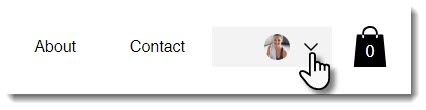
- Navigate to a store product or restaurant item.
- Add the item to your cart and click Checkout.
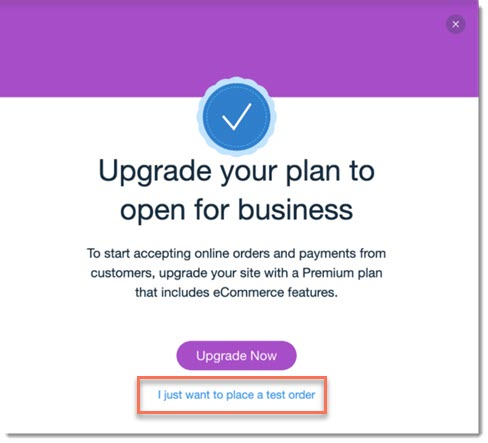
- Click I just want to place a test order.
Get personalized checkout tips
Use Wix’s AI checkout guide to get tailored tips for improving checkout. The guide shows where customers abandon the process and suggests changes that may help increase completion rates.
To access these tips,
go to Checkout Settings in your site's dashboard and look for the guide on the right side of the page.
Notes:
- Checkout suggestions are available only after your site has enough sales to generate enough sales data.
- Before making suggested changes, always review settings in own Wix account to ensure they align with your business needs, applicable laws, and Wix’s most up-to-date features and policies.
FAQs
Click a question below to learn more about previewing the checkout process.
Can I preview checkout for product subscriptions on my live site?
What happens if I test checkout with a payment method other than manual payment?
How can I preview changes I make to the checkout page?
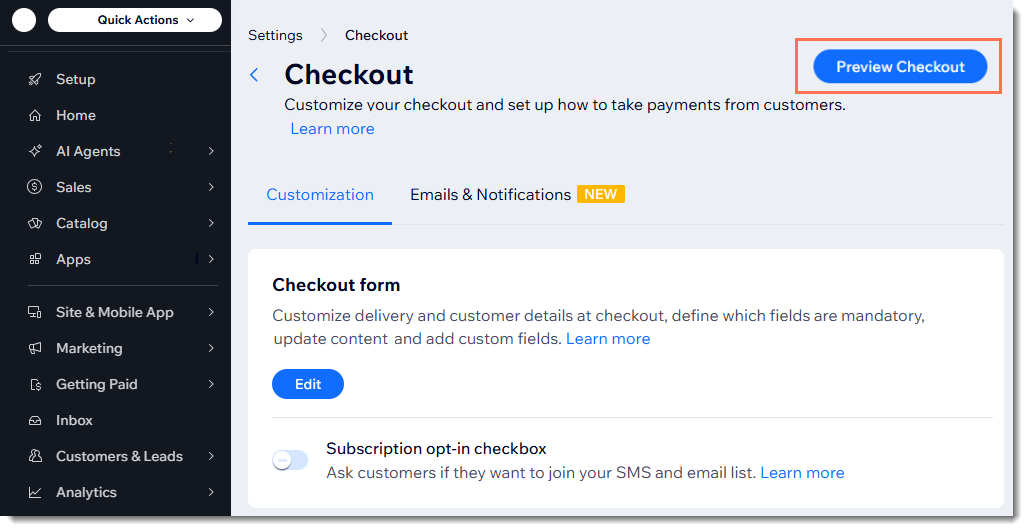
 to preview the checkout page on mobile.
