


CMS: Understanding Collection Storage Limits and Quotas
7 min
In this article
- Store more content with expanded item limits
- Keep individual items within size limits
- Manage your total database storage
- How app collections affect your storage
- Optimize your data storage
- FAQs
The Wix CMS (Content Management System) lets you store and manage content in collections, giving you the flexibility to create dynamic, data-driven sites. Understanding your storage limits ensures you can plan your site's content effectively and avoid unexpected interruptions.
Every site has different data needs, and Wix provides storage limits based on your Premium or Studio plan to ensure optimal performance. These limits include the number of collection items you can store, the size of each item, and your total database storage capacity.
Important:
Business Elite and Elite plans now support up to 10 million collection items and 100 GB of total database storage, significantly expanding what you can build with the CMS.
Store more content with expanded item limits
Wix limits the total number of items you can store across all your CMS collections. The number of items you can store depends on your Premium or Studio plan, allowing you to scale your site as your content grows.
Collection item limits by plan:
- Light plan: 1,500 items
- Core plan: 4,000 items
- Business plan: 20,000 items
- Business Elite and Elite plans: 10,000,000 items
Once you reach your plan's item limit, you won't be able to add more data to your collections. To continue adding items, delete existing items or upgrade your plan to receive more storage.
What counts toward your item limit:
- Items in your own collections
- Items in private app collections (apps you own or build)
What doesn't count toward your item limit:
- Items in Wix app collections (e.g., Wix Stores, Wix Bookings)
- Items in public app collections (apps installed from the Wix App Market)
- Items in external database collections
- Items in sandbox collections
Keep individual items within size limits
Each individual item in your collection can store up to 512 KB of data across all its fields combined. This limit applies to text, numbers, URLs, tags, and other non-media field types.
For example, if you have a recipe collection with fields for a recipe name, description, ingredients list, cooking instructions, and tags, the total size of all those fields together for one item cannot exceed 512 KB.
Important:
Media files stored in image, video, audio, document, and media gallery field types are not counted toward the 512 KB per-item limit. These files are stored in your Media Manager and have separate storage limits.
Tips:
- A typical simple item with several text fields (like a blog post with a title, author name, and short description) uses only a few kilobytes of storage. Most items stay well under the 512 KB limit. If you try to add an item larger than 512 KB, you'll see this error in Wix Logs: WDE0009: Document is too large. Learn more about Wix Data error codes.
- Some field types have additional specific limits beyond the 512 KB per-item limit. Learn more about supported content in collection field types.
Manage your total database storage
In addition to item limits, Wix also caps the total database storage your site can use. This cap applies to the combined size of all items across all your CMS collections and helps ensure optimal performance for all Wix sites.
Total database storage by plan:
- Light, Core, and Business plans: 10 GB total database storage
- Business Elite and Elite plans: 100 GB total database storage (effective January 7, 2026)
Once you reach your total database storage cap, you won't be able to add more data to your collections, even if you haven't reached your item limit. To free up space, delete items you no longer need or upgrade your plan.
Note:
This database storage cap is separate from your site's media storage (used for images, videos, and other files uploaded to your Media Manager).
To check your CMS storage usage:
- Enable coding in your editor if you haven't already.
- Go to Monitoring in your site's dashboard.
- Click the CMS collection storage tab.
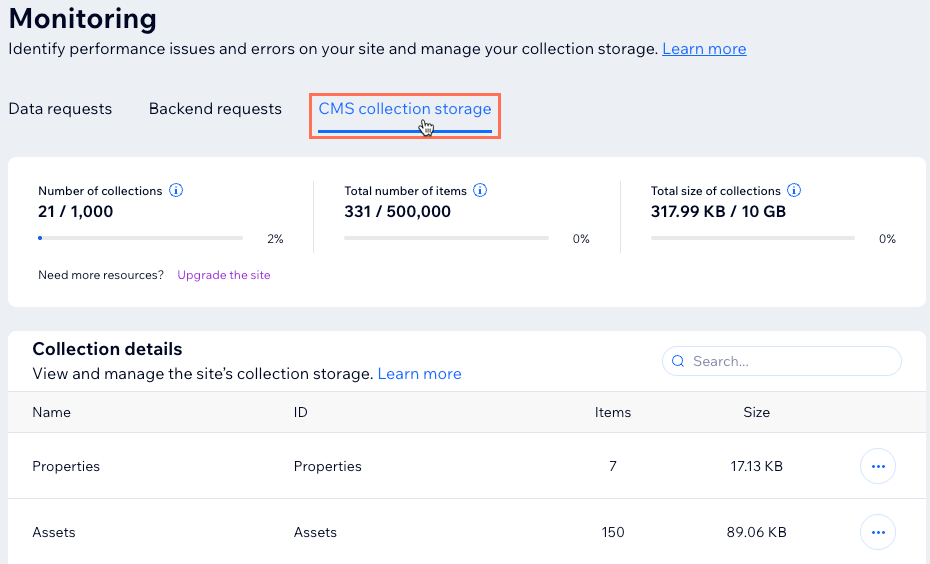
- Review your storage details, including:
- Total number of items across all collections
- Total size of collections (database storage used)
- Storage usage per individual collection
Tips:
- Sort the Collection details table by clicking any of the headings (e.g. Name, ID, Items, Size).
- Click the More Actions icon
 next to a collection to open the collection.
 - Use the Search field to find specific collections faster.
- You can also see your current item count under Your Collections in the CMS (e.g. "You have 331/500000 items").
How app collections affect your storage
When you install apps on your site, some apps create collections to store their data using the Wix Data API. How these collections count toward your storage quota depends on the type of app.
Wix app collections:
- Do not count toward your collection item limit or database storage cap
- Created automatically by Wix products like Wix Stores, Wix Bookings, Wix Events, and Wix Blog
- Found under "Wix App Collections" in your CMS (when Wix app collections are enabled)
- Examples: Products collection (Wix Stores), Services collection (Wix Bookings)
Public app collections:
- Do not count toward your collection item limit or database storage cap
- Created by apps you install from the Wix App Market (including public Blocks apps and other apps using Wix Data APIs)
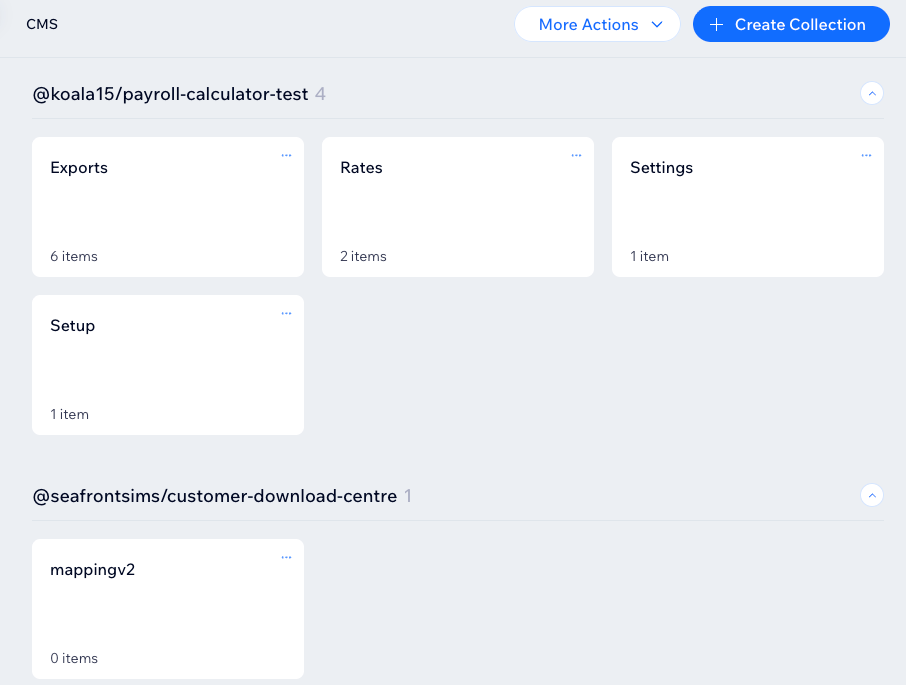
- Appear in "Your Collections" with an @ prefix in the collection name (e.g., @developer/app-name)
- Example: Installing the Customer Download Hub app creates the @seafrontsims/customer-download-centre collection
Private app collections:
- Do count toward your collection item limit and database storage cap
- Created by apps that you develop yourself (including custom Blocks apps you build and apps you create using Wix Data APIs)
- Also appear in "Your Collections" with an @ prefix
- These collections are counted toward your quota to ensure fair use of plan limits, since you control how much data these apps store
Tip:
You can identify app collections by the @ symbol in their name. Public app collections (installed from the App Market) don't count toward your quota, while private app collections (apps you develop yourself) do count.
Learn more about working with Wix app collections.
Optimize your data storage
If you're approaching your storage limits, there are several ways to reduce the amount of storage your site uses and stay within your quota.
Delete data you don't need
Delete sandbox items
Use external databases
Upgrade your plan
FAQs
Click below for answers to common questions about collection storage limits.
What happens if I exceed my storage quota?
Do media files count toward my database storage cap?
What happens if I downgrade my plan?
Can I see how much storage I'm currently using?
What are the storage limits for free Wix sites?
How do Partners and Studio users' free-tier limits differ?
Can I increase my storage limits without upgrading?
Do items in Wix Forms collections count toward my storage?
