


CMS: Saving Collection Changes as Drafts First
- Understanding item statuses
- Enabling the 'Save changes as draft first' setting
- Setting collaborator and role permissions
- Updating the status of draft and changed items
- FAQs
The CMS (Content Management System) gives you a safe way to work on your collection content before it goes live on your site. When you enable drafts for a collection and select Save changes as draft first, new items and edits are saved as drafts until someone with the right permission publishes them. This lets teams draft, preview, and approve content together, so nothing reaches your site before it is ready.
You can set who can edit, publish, or delete content in each collection. Team members without publishing permissions can still make changes, but those changes are saved as drafts until someone with publishing permissions publishes them.
Per collection: You can turn on Save changes as draft first for each collection separately, in the collection's settings.
Item level only: Draft changes apply to collection items. Changes to the collection structure (fields and schema) are not saved as drafts.
Understanding item statuses
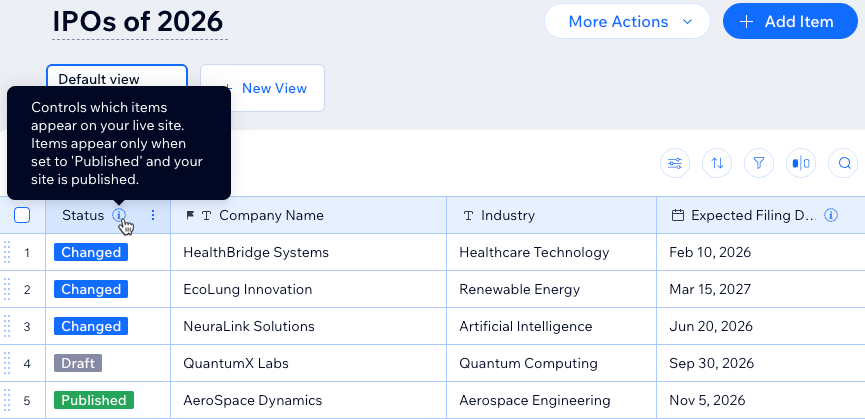
In a collection that saves changes as drafts first, each item shows a status so you can see where it is in the flow.
Draft: An item that cannot appear on your live site since it is not published. This includes new items that have not been published yet, and previously published items that were later unpublished.
Changed: A published item that has unpublished edits saved over the live version. The live site keeps showing the published version until you publish the changes.
Published: The item is live on your site.
Enabling the 'Save changes as draft first' setting
Only site admins, or collaborators with permission to manage collection settings, can change this setting.
To enable saving changes as drafts:
Go to CMS in your site's dashboard.
Click the relevant collection.
Click More Actions at the top and select Collection settings.
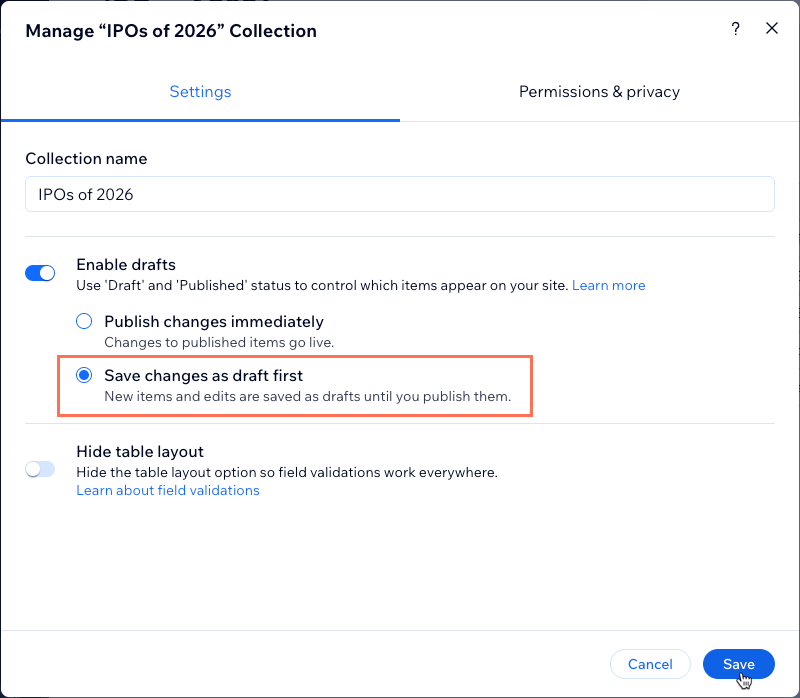
Enable the Enable drafts toggle.
Select Save changes as draft first.
Click Save.
Continue to the next section to learn how to set permissions for your team members.
Setting collaborator and role permissions
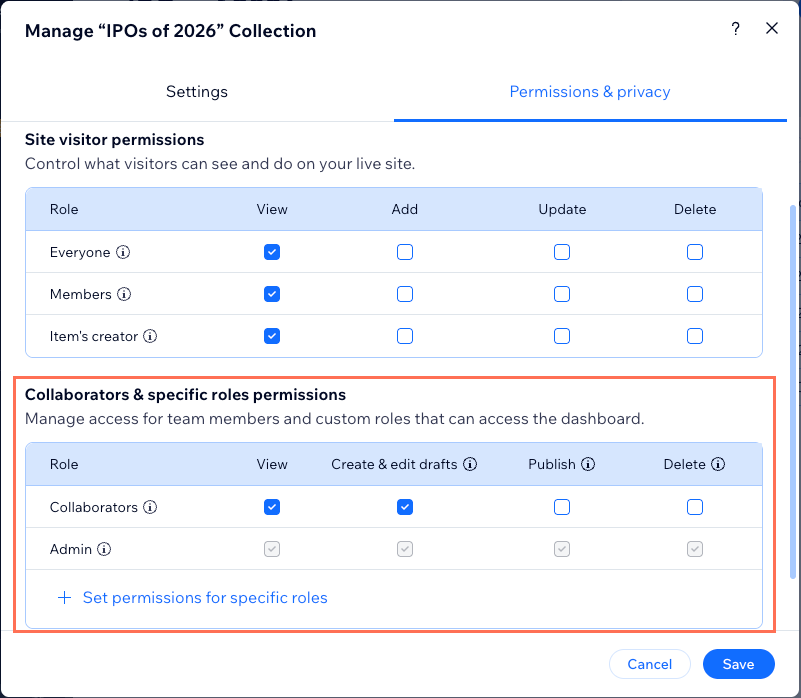
When a collection is set to Save changes as draft first, a Collaborators & specific roles permissions table appears below the existing Advanced permissions table in the collection settings. This table only shows when the collection is set to review edits before publishing.
Use this table to control what each collaborator or role can do with the collection's content.
To set permissions for saving changes as drafts:
Enable the Save changes as draft first collection setting (see the section above for steps).
Go to the Permissions & privacy collection settings:
Go to CMS in your site's dashboard.
Click the relevant collection.
Click More Actions at the top and select Permissions & privacy.
Select the relevant checkboxes in the Site visitor permissions table to choose what visitors can view, add, update and delete on your live site.
(Optional) Add specific collaborator roles to give them permissions for reviewing edits before publishing:
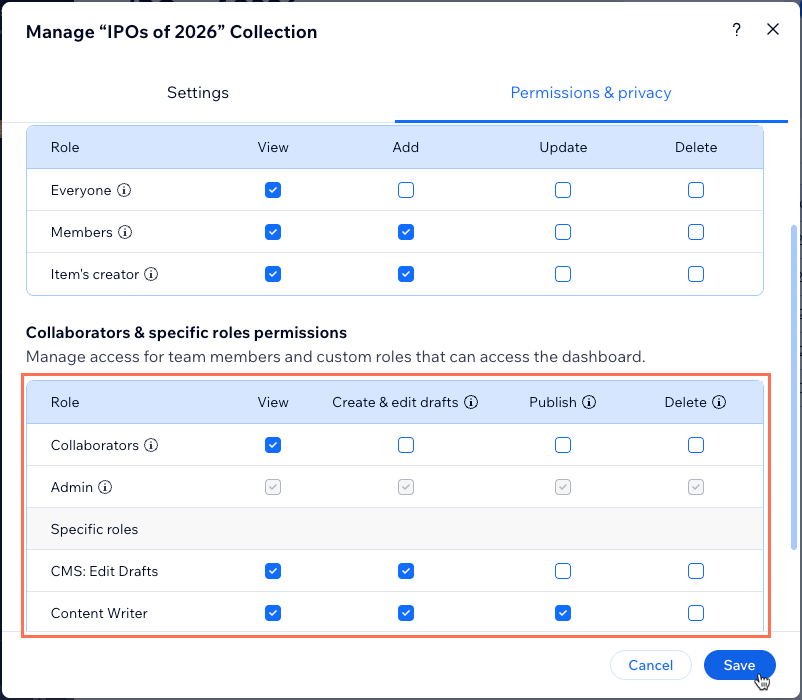
Click + Set permissions for specific roles at the bottom of the Collaborators & specific roles permissions table.
Select the relevant CMS access roles.
Click Done.
Select the relevant checkboxes in the Collaborators & specific roles permissions table to choose what team members and collaborators can access:
View: Team members with the role can view items in this collection.
Create & edit drafts: Team members with the role can create, edit and delete draft items in this collection.
Publish: Team members with the role can publish or unpublish items in this collection.
Delete: Team members with the role can delete items in this collection.
Click Save.
Updating the status of draft and changed items
Once Save changes as draft first is on, the items you add or edit are saved as drafts instead of going live. With the relevant permissions, you can then review and publish the draft items to update them on your live site. Alternatively, you can revert changed items to their live version or unpublish an item to remove it completely from your live site.
To update an item's status:
Go to CMS in your site's dashboard.
Click the relevant collection.
Add or edit a collection item.
Note: The item status updates. New items are saved as Draft, and edits to live items are saved as Changed over the published version.Update the item's status:
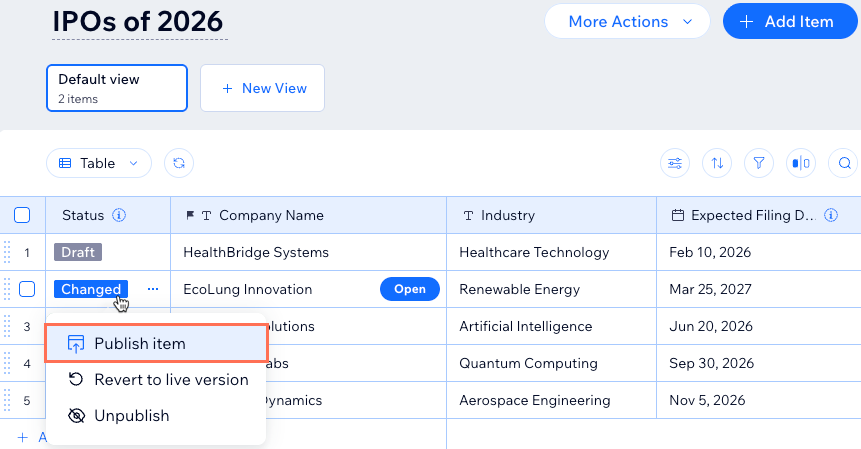
Click the status for the relevant item.
Choose the relevant option:
Publish item: Allow the updated item to appear on your live site.
Tip: Learn more about connecting elements to your collection items to make them appear on your live site.Revert to live version: Revert the item in your collection to the version that is on your live site.
Unpublish: Remove the item from your live site and revert it to the Draft status.
FAQs
Click below to learn more about saving changes as drafts before publishing.
