


CMS: Managing Your Collections from the CMS Dashboard
- Choosing how to view your collections
- Sorting collections and customizing columns
- Filtering your collections
- Viewing site pages, permissions, and relations
- Managing a collection from the table
- FAQs
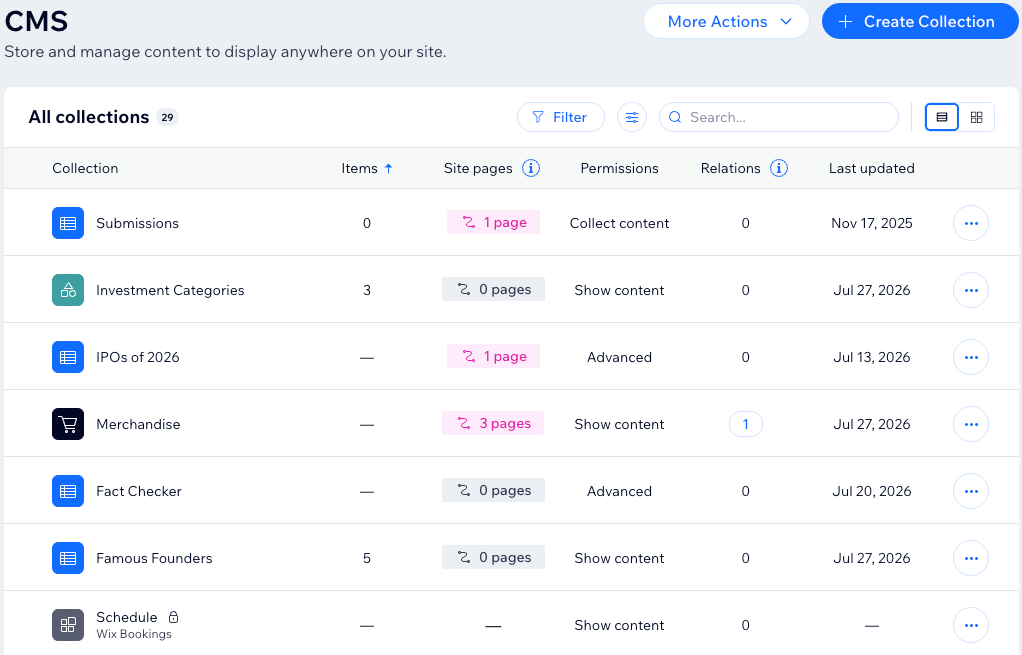
View and manage all of your collections on the CMS (Content Management System) page in your site's dashboard. Choose between two views: a table or a gallery. In the table, you see how many items each collection has, which site pages use it, its permissions, and when it was last updated. You can also sort and filter your collections, and choose which columns appear. In the gallery, you see each collection as a card.
Choosing how to view your collections
Switch between the table and the gallery, depending on what you need. Use the table to see the details of every collection at once. Use the gallery to see your collections as cards.
To switch between the table and the gallery:
- Go to CMS in your site's dashboard.
- Click the relevant view icon at the top right, next to the search bar:
- Table
 : See your collections in rows, with columns for items, site pages, permissions, and last update.
 - Gallery
 : See your collections as cards.
- Table
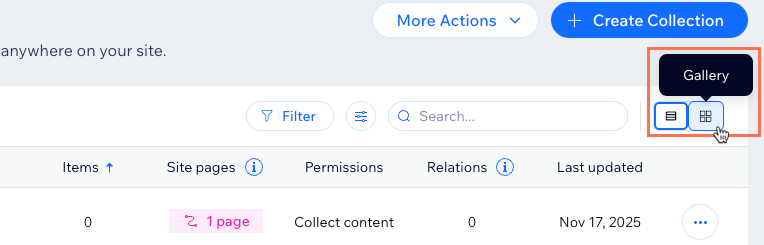
In the gallery, each card shows the collection's name. Below the name, you see how many items the collection has. For Wix app collections, the card shows the app's name instead. Single item collections show a label instead of the item count. Learn more about single item collections.
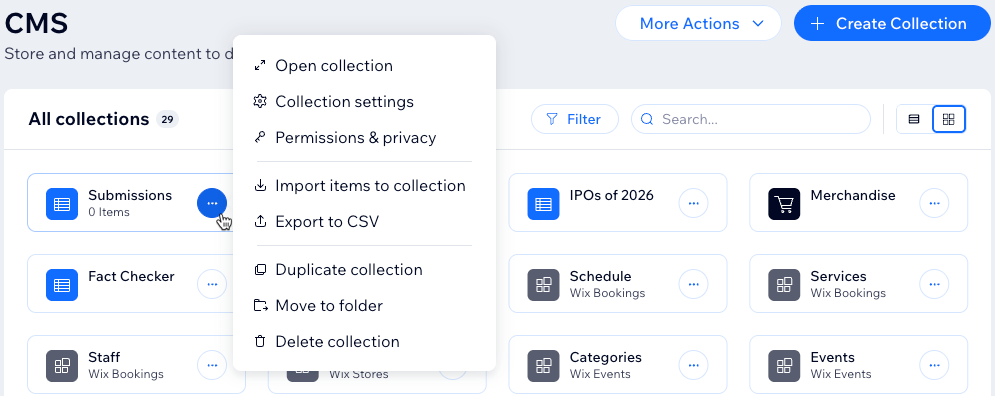
To manage a collection from the gallery, click the More Actions icon  on its card. You get the same options as in the table.
If you organize your collections into folders, your folders appear in their own section above your collections. Learn more about collection folders.
Search and Filter work in both views. Sorting and Customize columns are available in the table view only.
Sorting collections and customizing columns
Sort your collections by any column to bring what you need to the top, for example, your most recently updated collections. You can also choose which columns appear in the table.
To sort your collections or customize the table:
Go to CMS in your site's dashboard.
Choose what you want to do:
Sort your collections: Click any column heading (e.g. Last updated) to sort by that column. Click the heading again to reverse the sort order.
Choose which columns appear:
Click the Customize icon
 at the top right, next to the search bar.
Select the checkbox next to each column you want to show: Items, Site pages, Permissions, Relations, or Last updated.
(Optional) Click and drag the Reorder icon
 next to the relevant columns to reorder them.
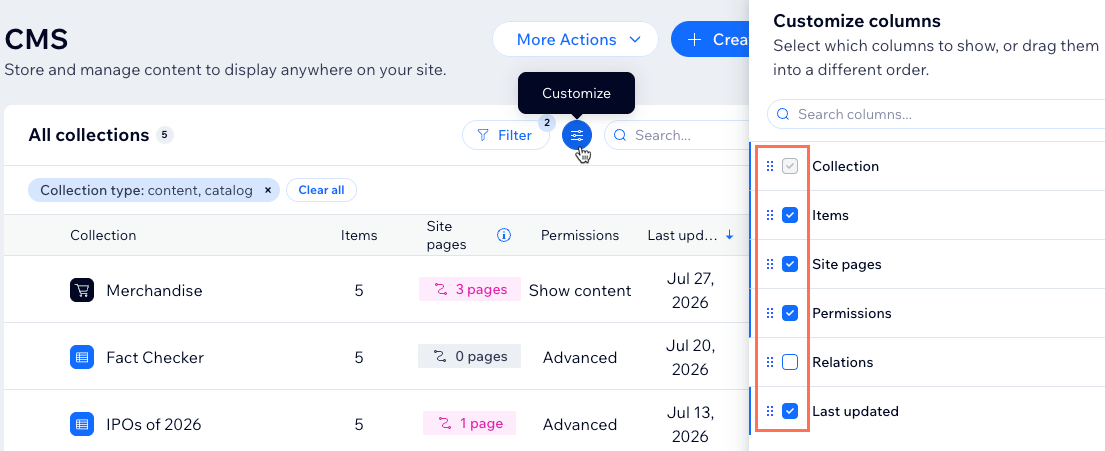
The Relations column is hidden by default. Select Relations in the Customize columns panel to show which collections use each other's data.
Filtering your collections
Filter the table to narrow down what you see when you have many collections. You can combine filters, for example, to show only collections with 'Advanced' permissions that are not used on your site.
To filter your collections:
Go to CMS in your site's dashboard.
Click Filter at the top right.
Select the relevant filters:
Collection type: Show content collections, catalog collections, or collections from specific Wix apps.
Permissions: Show collections by their permission preset: Show content, Collect content, or Advanced.
Site pages: Show collections that are used or not used on your site's pages.
Relations: Show collections that do or do not share data with other collections.
Last update: Show collections updated in the last 7 days, 14 days, month, or a custom date range.
(Optional) Remove filters by clicking the X on a filter tag above the table, or click Clear all to remove all filters.
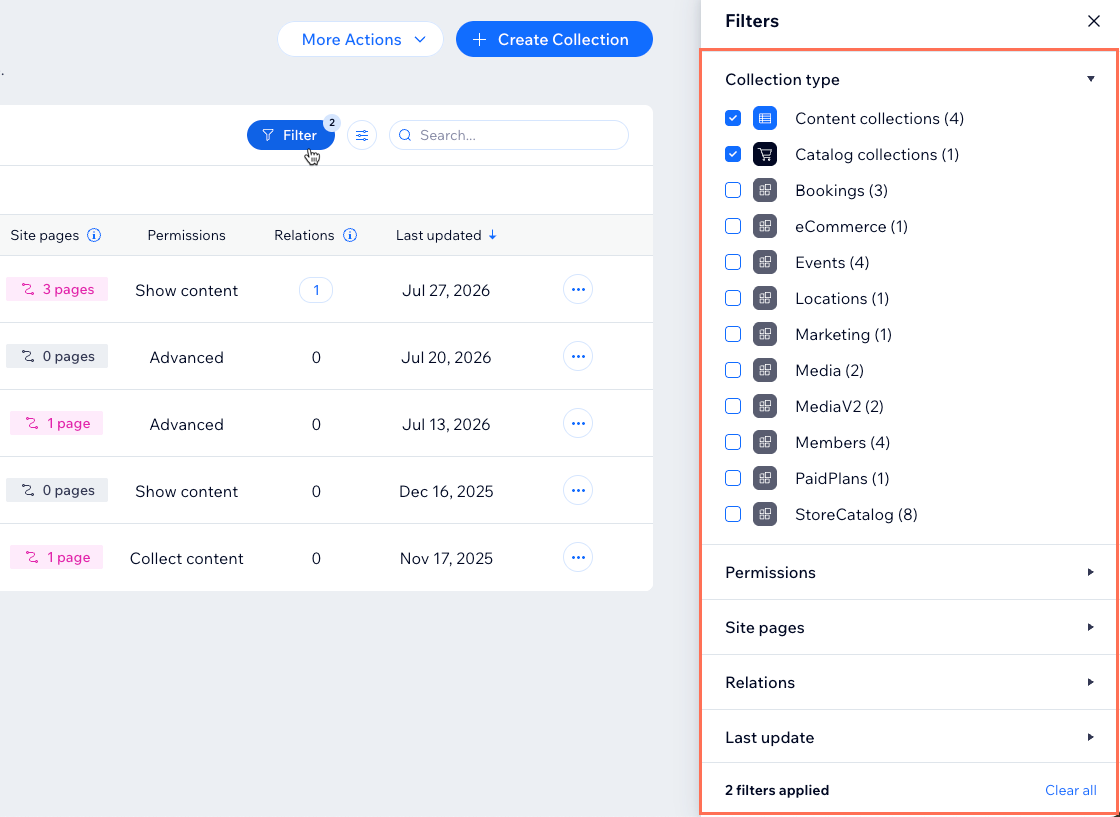
The table is filtered to show content collections and catalog collections by default — these are the collections you create. To see Wix app collections (e.g. Wix Stores, Wix Bookings), update the Collection type filter.
Viewing site pages, permissions, and relations
Use the table's columns to do more than view information — you can spot permission issues and jump straight to related collections.
Review the columns below to understand what each one shows you:
Site pages: Shows how many site pages connect to the collection directly through CMS datasets or dynamic pages. Click the number of pages label to view which site pages the items appear on.
Permissions: Shows the collection's permission preset. A warning icon appears when a collection's permissions are misconfigured. Learn more about collection permissions.
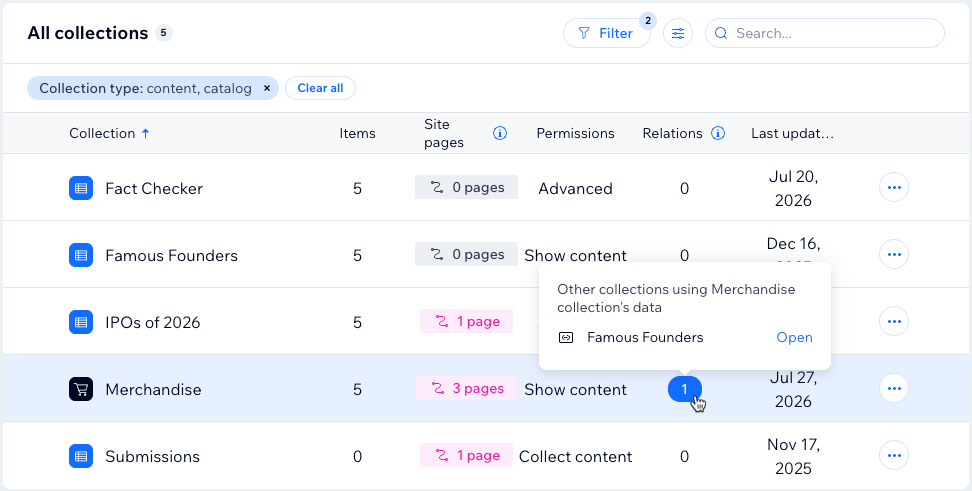
Relations: Shows how many other collections use this collection's data through reference fields. Hover over the number to see the referencing collections, then click Open to go to one.
Managing a collection from the table
You can take quick actions on any collection without opening it.
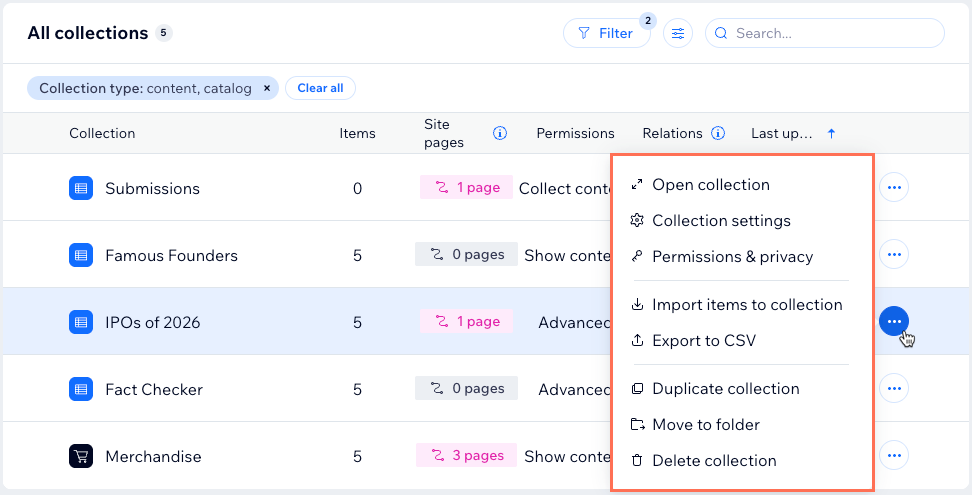
Click the More Actions icon next to the relevant collection, then select an option:
Open collection: View and edit the collection's items.
Collection settings: Update the collection's name and settings.
Permissions & privacy: Control who can view and manage the collection's content. Learn more about changing your collection permissions.
Import items to collection: Import content from a CSV file.
Export to CSV: Export the collection's content to a CSV file.
Duplicate collection: Create a copy of the collection's fields and settings.
Move to folder: Organize the collection into a folder.
Delete collection: Delete the collection. You cannot delete a collection while other collections still reference its data — the Relations column shows which collections to check first.
FAQs
Click below to learn more about managing your collections from the CMS page.
 and select Permissions & privacy to review and update the settings. Learn more about