


CMS: Managing Your Collection Content
In this article
- Managing your CMS collection content
- FAQs
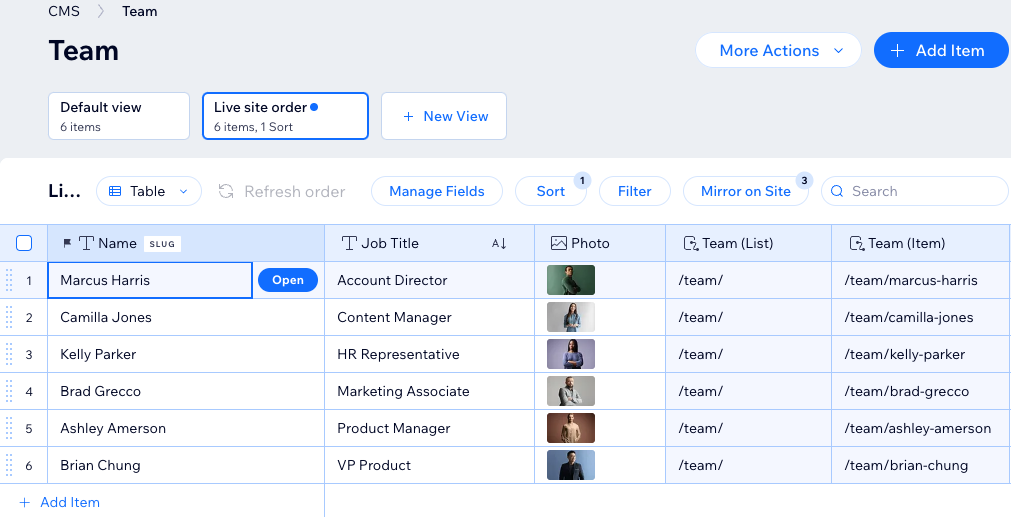
Manage your CMS (Content Management System) collection content from your site's dashboard or editor. Your collection consists of distinct fields and items, with each item's content stored in its fields. As you work within a table, list, or gallery layout, you can add or edit the fields and field values of your collection items. If you save over an item by mistake, you can go back to an earlier version of it with item history.
In this tutorial we use the default table layout of your collection. Keep in mind that only the list layout is available in single item collections. If you're using sandbox collections, make sure to access them from the CMS in your site's editor.
Managing your CMS collection content
Access your collection from your site's dashboard or editor to start managing the content.
To manage content in your collection:
- Go to CMS in your site's dashboard. Alternatively, you can click CMS
 in your editor, then click Your Collections.
 - Click the relevant collection.
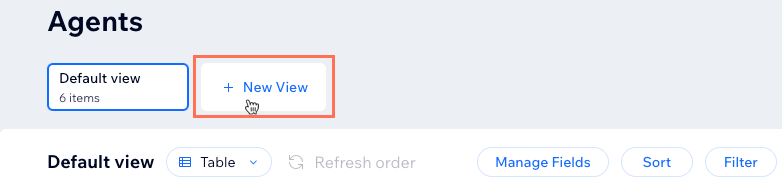
- (Optional) Create a custom collection view for you and site collaborators to use:
- Click + New View at the top.
- Enter a name for the collection view and press Enter on your keyboard.
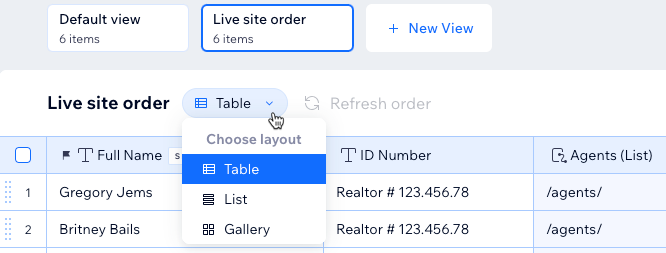
- (Optional) Click the Layout drop-down and choose a layout to use:
- Table: View the collection in an editable table with items as rows and fields as columns.
- List: View the collection items in a list where you click to open individual items to edit their field values.
- Gallery: View the items in a gallery where you click to open individual items to edit their field values.
- Choose what you want to do:
Manage the collection fields
 next to the fields to change the order in which they appear in your collection view.
 . Then select an option:
Add, edit, or select items
 and select
 Sort the items automatically
 next to the relevant items to change their order.
Filter the items by field value
Mirror the item order on your live site

More actions
FAQs
Click the questions below for answers to common questions about managing collection content.
What content can I store in each field type?
How do page elements connect to collections?
Can I hide items in my collection to prevent them from appearing on the page?
Can I control the order in which the items display on my live site from my collection?
Can I add a filter to my collection view if it has 'Mirror on Site' enabled?
Can I make fields 'required', limit their characters, or set them to accept specific values only?
Can I add default values to fields?
Can I view a list of all the pages that connect to my collection?

Are there storage limits for collection fields?
Can I create a dynamic link that visitors click to send emails?

How can I sort my items in a more logical way when using a mixture of letters and numbers in a 'Text' field type?
What is a URL slug?
What is a dataset?
