AI Custom Agent: Managing Your AI Custom Agent
In this article
- Managing your tasks
- Viewing your activity
- Managing your notifications
- Managing your integrations
- FAQs
Important:
Starting September 2026, the AI Custom Agent is no longer available on new accounts. If you already have the AI Custom Agent set up on your site, you can continue using it as usual.
To build a team of AI agents that handle tasks and help run your business, try using Symphony by Wix.
Manage your AI Custom Agent's tasks from a centralized dashboard. The AI Custom Agent dashboard gives you a complete overview of everything your agent is doing, with tools to manage your tasks, settings, and notifications.
Managing your tasks
Check which tasks need attention and stay on top of what your agent is doing at a glance. Review and approve the agent's actions, make any changes necessary to existing tasks, and more, to keep your processes up to date as your business needs evolve.
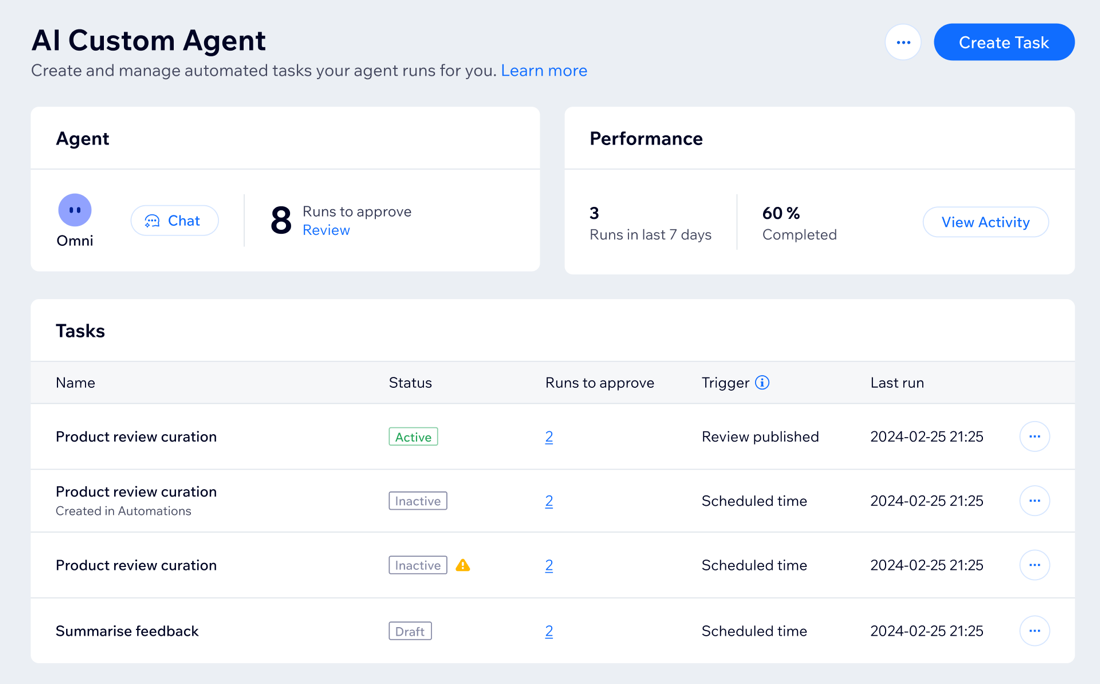
On the dashboard, you can view the following information for each task:
- Status: Shows whether the task is active, inactive, or a draft:
- Active: The task is running as expected.
- Inactive: The task deactivates if you do not approve or reject agent actions within 3 days, or if the task runs 5 times in a row without your response.
- Draft: The task appears as a draft when you create it and save without activating it.
- Runs to approve: The number of task runs waiting for your review and approval. For example, you may have several runs pending, each for a separate email the agent wants to send to a customer.
- Trigger: What makes the agent run the task. You can change the trigger from the task's settings.
- Last run: The last time the agent ran the task.
To manage your tasks:
Dashboard
Wix app
- Go to Custom Agent in your site's dashboard.
- Go to the Tasks section.
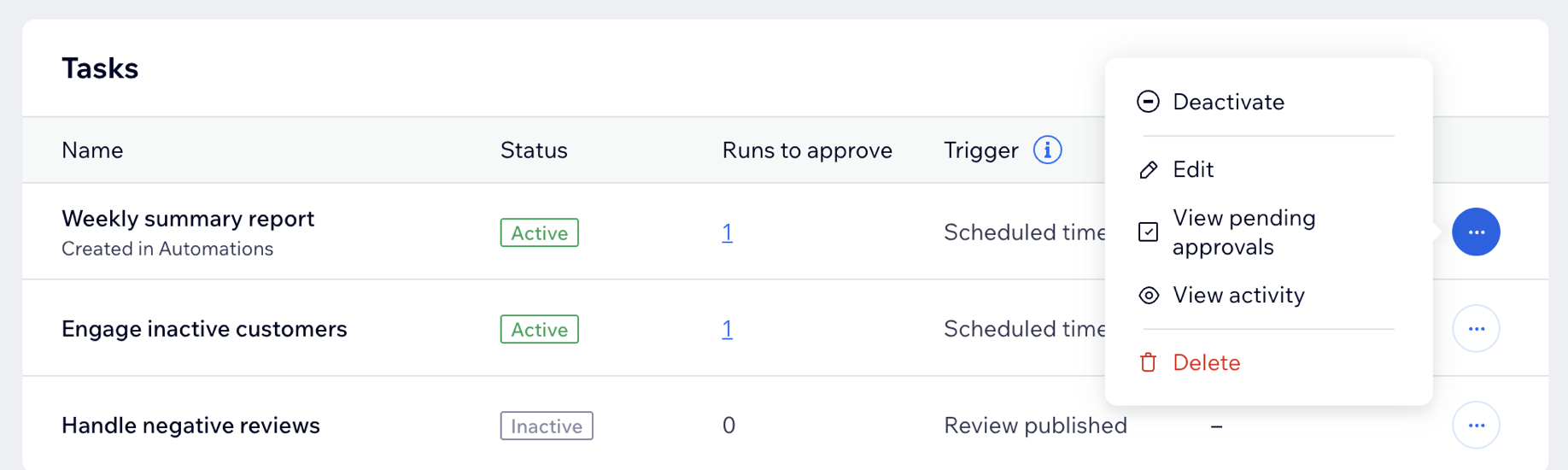
- Choose what you want to do:
Review pending approvals
Edit a task
View a task's activity
Duplicate a task
Delete a task
Viewing your activity
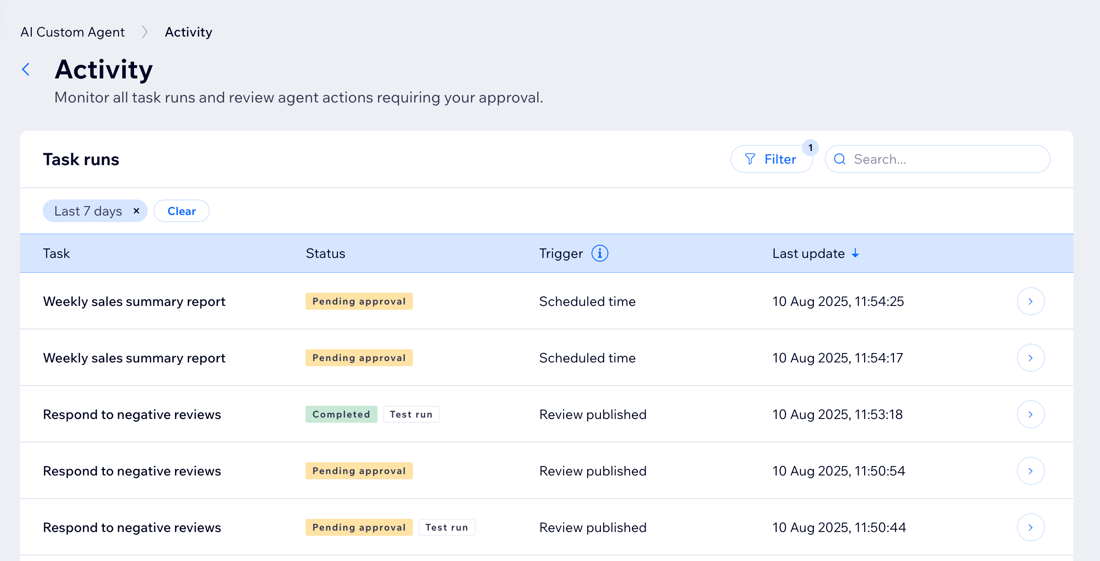
See a full record of every task executed, including their current status and detailed run information. Your task runs indicate each time a task is carried out. For each task run you can see the following information:
- Status: The status of the run (e.g. in progress, completed, failed).
Tip: Check the FAQ section to learn what each status indicates. - Trigger: The automation trigger that causes the task to run.
- Last update: The last time the agent ran the task.
To view your activity:
Dashboard
Wix app
- Go to Custom Agent in your site's dashboard.
- Click View Activity in the Performance section.
- Choose what you want to do:
- Filter the task runs: Filter the Activity page to only see information you need. You can filter the task runs by Status, Task, Time, Trigger, and Run type.
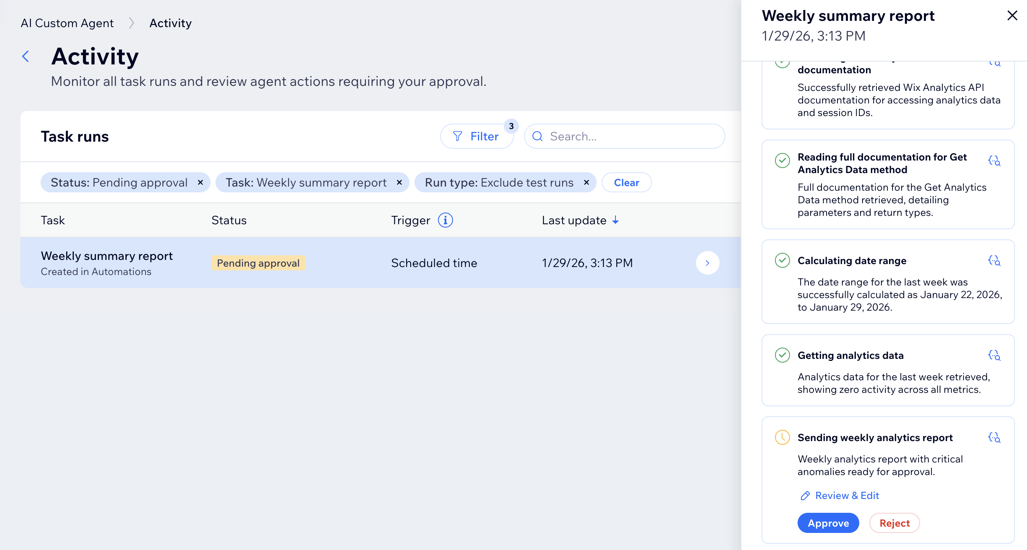
- View a task run's details: View details such as the agent's steps, request data and result data, and task summary. If you have a task that's pending approval, you can review and approve it from here. Hover over the relevant task run and click View Details.
Managing your notifications
Stay up to date on your agent’s activities by customizing your notification preferences.
To manage your notifications:
Dashboard
Wix app
- Go to Custom Agent in your site's dashboard.
- Click the More Actions icon
 at the top.
 - Select Edit notification settings.
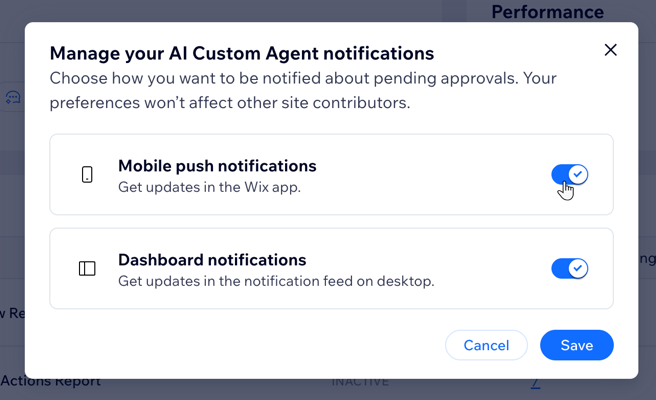
- Click the toggle next to the relevant notification type to turn them on or off:
- Mobile push notifications: Get updates through the Wix app.
- Dashboard notifications: Get updates in your site's notification feed.
Managing your integrations
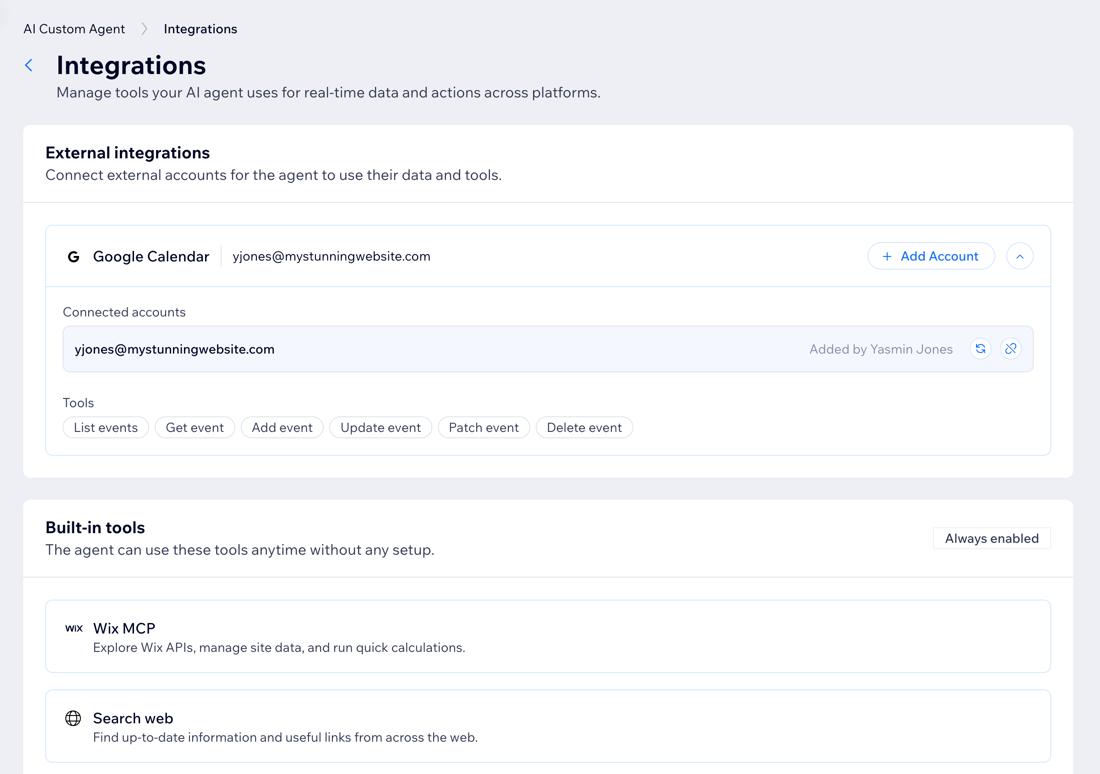
Integrations let your agent connect to different external platforms and tools so it can proactively perform tasks on your behalf. When you create a task or an automation, you can decide which of the available integrations the agent can use for that specific task.
From the Integrations page, you can connect, re-authenticate, or remove accounts.
Learn how to manage integrations.
FAQs
Click a question below to learn more about managing the AI Custom Agent.
What does each task status on the Activity page mean?
Why do I see failed steps in a task, but the task has been completed?
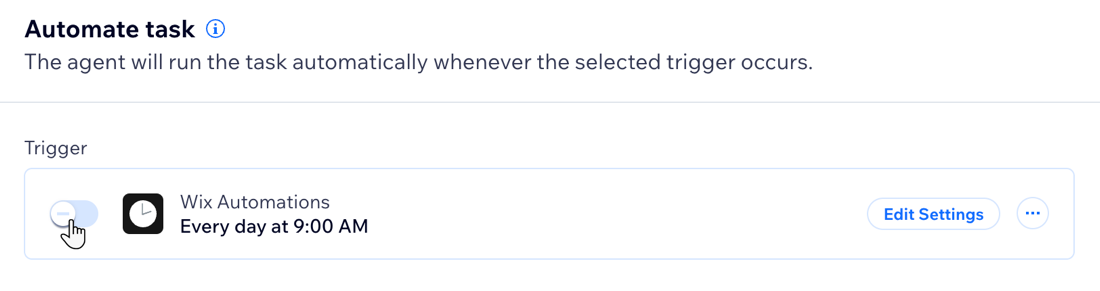
How do I change a task's automation setting from 'Inactive' to 'Active'?