


header-logo
Getting started with WixLearn how to build your website and business using Wix.
Creating a websiteDesign and manage your site with smart functionalities.
Account & billingManage subscriptions, plans and invoices.
Using the Wix mobile appsRun your business and connect with members.
Connecting a domainLearn to purchase, connect or transfer a domain to your site.
Managing your businessGet tools to grow your business and web presence.
Promoting your siteBoost your visibility with SEO and marketing tools.
Studio, Partners & EnterpriseGet advanced features to help you work more efficiently.
Need more help?Find solutions, learn about known issues or contact us.
placeholder-preview-image
Wix LearnImprove your skills with our courses and tutorials.
Wix BlogGet tips for web design, marketing and more.
SEO Learning HubLearn to increase organic site traffic from search engines.
Website developmentBuild a custom site using our full-stack platform.
Hire a ProfessionalGet matched with a specialist to help you reach your goals.
placeholder-preview-image

Wix Stores: Allowing Customers to Add a Message When Purchasing a Product

1 min
Add a custom text box to your Product Page so that your customers can leave you a message when they purchase a specific product. This could be used to add personalization options to products, or for adding gift wrap options. 
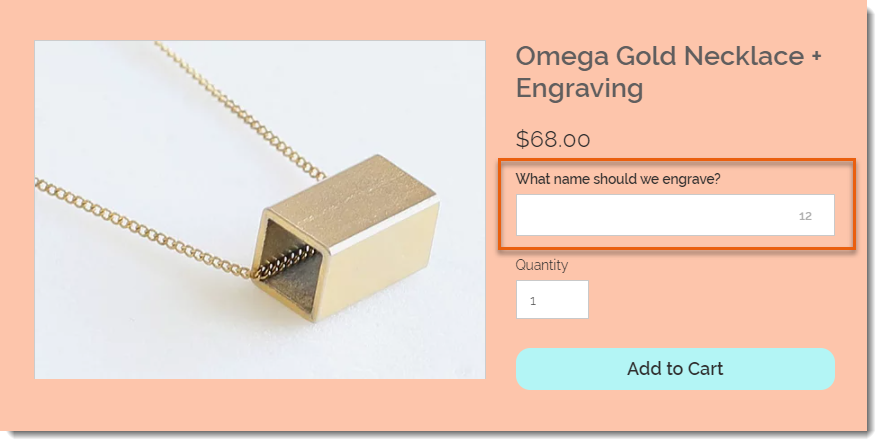
Screenshot of a product displayed on the product page in a Wix stores with a customer message field outlined

To add a custom text field to your Product Page:

  1. Go to Products in your site's dashboard.
  2. Select the relevant product or click New Product to add a new one.
  3. Scroll down and click Add Custom Text Field.
  4. Enter the title of the text field (e.g. What name should we engrave?).
  5. Enter the character limit for the text field.
  6. Select or deselect the Mandatory field checkbox:
    • Selected: The customer must fill in the text field.
    • Deselected: The customer can leave it blank.
  7. (Optional) Click Add Another to add a second custom text field.
    Tip: You can add up to 2 fields.
  8. Click Save.
After a customer makes an order, you can see the information they wrote in the Orders tab. 
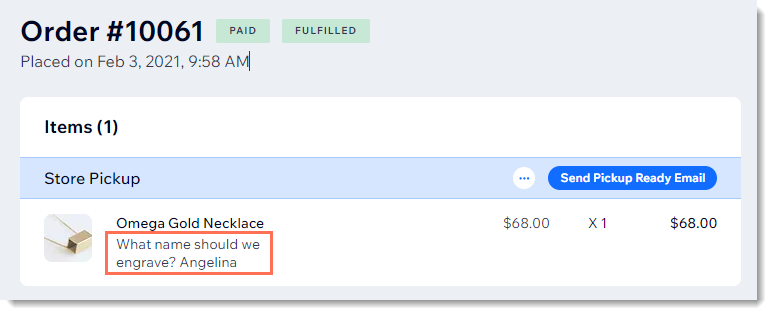
Screenshot of a store order in the Wix dashboard with a customer's message outlined

Helpmate

Hello

Need a bit more guidance?
Summary of this article
Related articles
Collecting and Viewing Buyer Notes

Customizing Links on Your Cart Page
Unlock personalized helpLog in to get the most out of Helpmate.