
About Pricing Options
With pricing options, you can sell one plan at several prices, such as the same membership billed monthly, yearly or as a one-time payment. Customers see the plan once and choose how they want to pay, instead of you creating a separate plan for every price.
Click a question below to learn more.
Select Paid under Plan type.
Select the relevant Payment type under Pricing options:
Recurring payments:
Enter the Price.
Click the Payment frequency dropdown and select how often customers pay (Weekly, Monthly, Yearly or Custom).
(If you selected Custom) Enter how often the payment repeats (e.g. every 3 months).
One-time payment: Enter the Price.
Click + Add Pricing Option.
Repeat step 2 to set up the new option.
Next to This pricing option appears on this tab on your site, select the tab customers click to see each option.
(Optional) Click + Manage Tabs to create or rename tabs.
(Optional) Click + Add Pricing Option again to add more options.
(Optional) Under Additional settings, charge a setup fee or enable a free trial. Note: These apply to the whole plan, not to individual options.
Click Save.
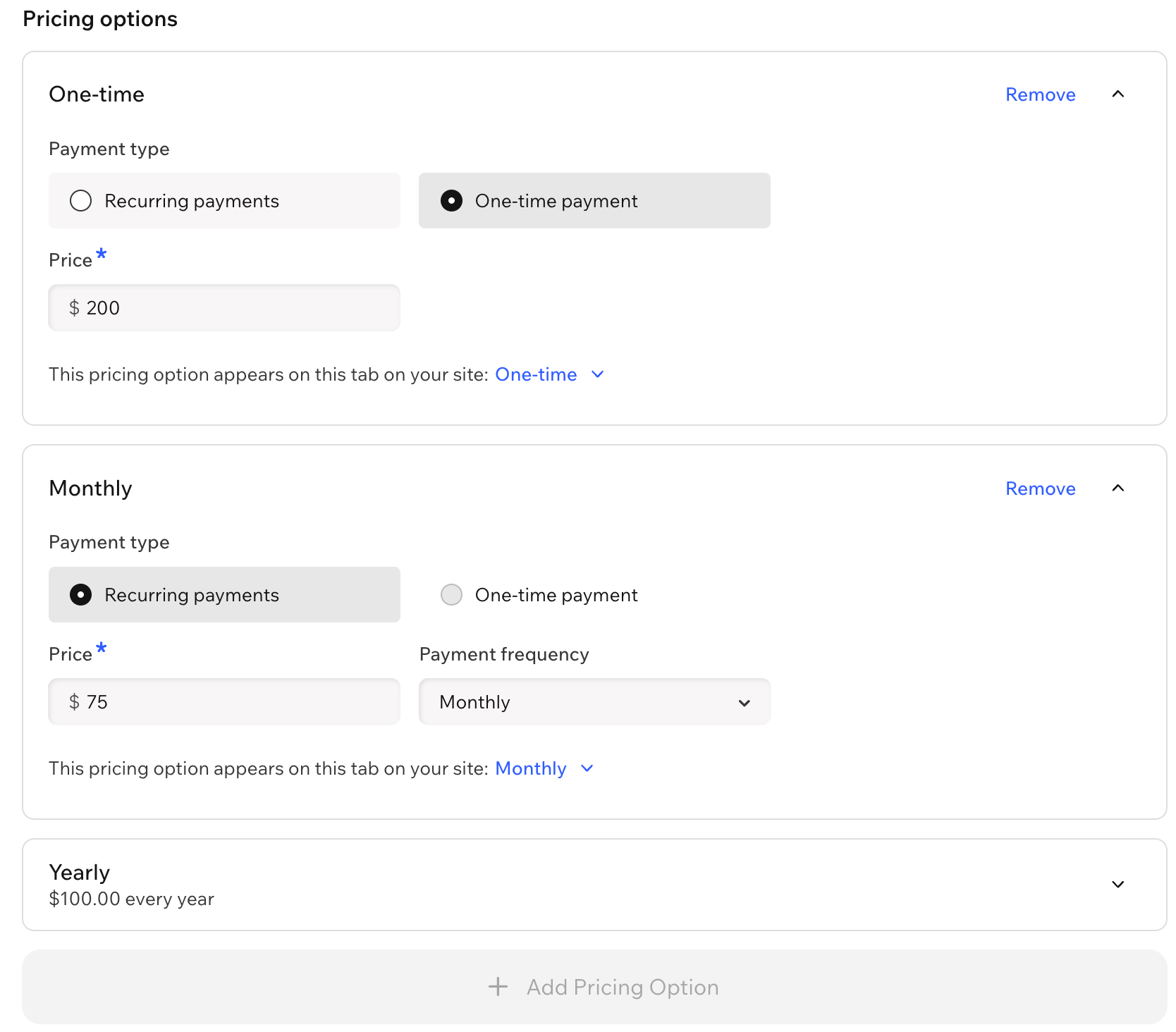
Note: Each plan can have one one-time pricing option, and no two options can bill on the same schedule.
Yes.
Click the This pricing option appears on this tab on your site dropdown under the relevant pricing option and select + Manage Tabs.
Hover over the relevant tab name and click the Edit icon
.
Enter the desired tab name.
Click the Check icon
.
Click Done to confirm.
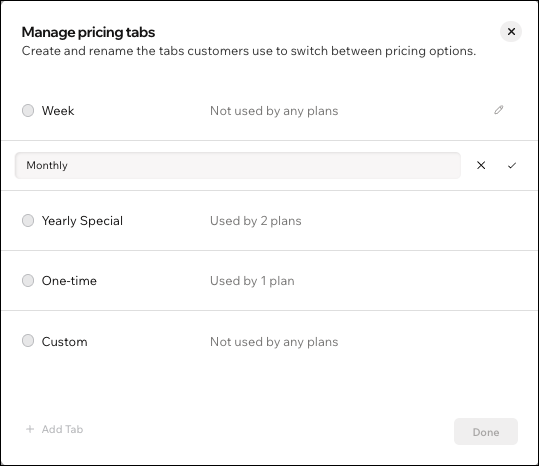
You can have up to 3 active pricing options per plan displayed on your site and up to 5 including hidden ones.
Another pricing option on this plan already uses that frequency and two pricing options on the same pricing plan can't bill on the same schedule.
Wix Editor:
Go to your Plans & Pricing page:
Click Pages & Menu
 on the left side of the editor.
Click your Plans & Pricing page.
Click the Plans & Pricing element on your page.
Click Settings.
Click the Plans tab.
Select the relevant layout under Plans layout:
Separate cards: Each pricing plan gets its own card so customers can switch between the available options. Select the checkbox(es) next to the plans / pricing options you want to display under Plans to show.
Switch between tabs: Customers choose a payment frequency (e.g. monthly or yearly) from the tabs, and all pricing plans show the pricing options available for that frequency.
Select the checkbox(es) next to the payment frequencies you want to display as tabs under Payment frequencies to show. Then, drag them to set the order they appear in.
Select the checkbox(es) next to the plans and pricing options you want to display under Plans to show.
Studio Editor:
Go to your Plans & Pricing page:
Click Pages
 on the left side of the editor.
Click your Plans & Pricing page.
Click the Pricing Plans element on your page.
Click Settings.
Click the Plans tab.
Select the relevant layout under Plans layout:
Separate cards: Each pricing plan gets its own card so customers can switch between the available options. Select the checkbox(es) next to the plans / pricing options you want to display under Plans to show.
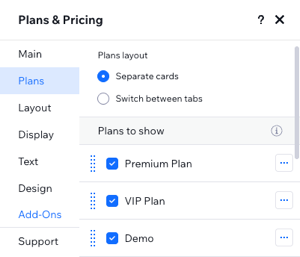
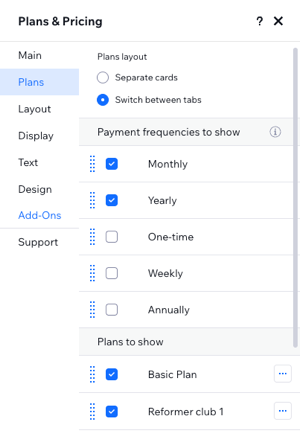
Switch between tabs: Customers choose a payment frequency (e.g. monthly or yearly) from the tabs, and all pricing plans show the pricing options available for that frequency.
Select the checkbox(es) next to the payment frequencies you want to display as tabs under Payment frequencies to show. Then, drag them to set the order they appear in.
Select the checkbox(es) next to the plans and pricing options you want to display under Plans to show.
Wix Harmony:
Go to your Plans & Pricing page:
Click the Page dropdown at the top left of the page.
(In the Site Pages panel) Select the Plans & Pricing page under Pricing Plans Pages.
Click the Pricing Plans List element on your page.
Click the Settings icon
 on the action bar.
Click the Plans tab.
Select the relevant layout under Plans layout:
Separate cards: Each pricing plan gets its own card so customers can switch between the available options. Select the checkbox(es) next to the plans / pricing options you want to display under Plans to show.
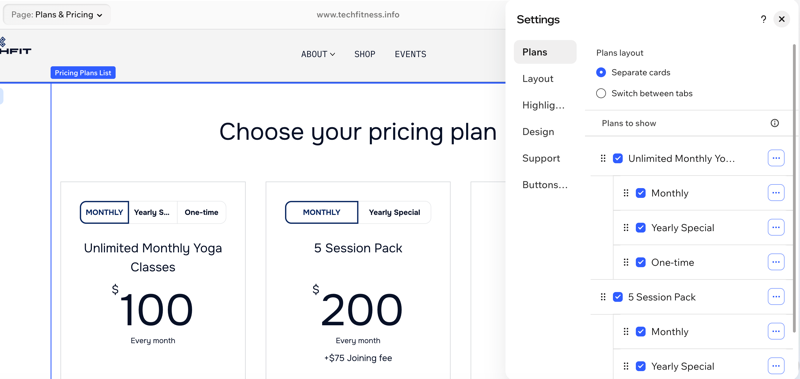
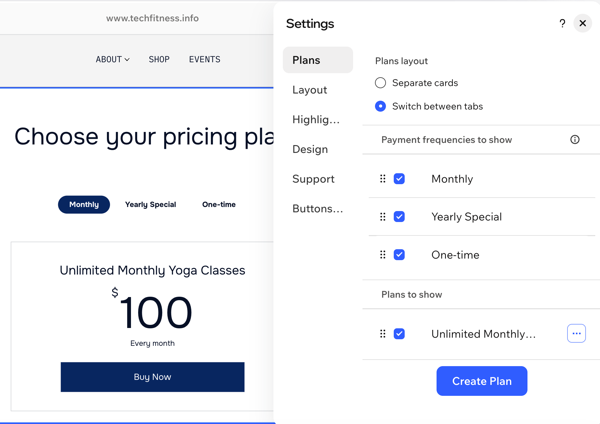
Switch between tabs: Customers choose a payment frequency (e.g. monthly or yearly) from the tabs, and all pricing plans show the pricing options available for that frequency.
Select the checkbox(es) next to the payment frequencies you want to display as tabs under Payment frequencies to show. Then, drag them to set the order they appear in.
Select the checkbox(es) next to the plans and pricing options you want to display under Plans to show.
No. Customers can’t change their subscription from one pricing option to another, for example from monthly to yearly. They need to cancel and buy the plan again with the option they want.
No. It is not possible to remove a pricing option that customers have already purchased.
You can hide the plan from your site so new customers can’t buy it. Existing subscribers keep their subscription and can keep using it.
To hide a plan from your site:
Go to Pricing Plans in your site's dashboard.
Hover over the More actions icon
 next to the relevant plan name.
Click Hide.
Alternatively you can change the price of an option.
To change a price of an option:
Go to Pricing Plans in your site's dashboard.
Hover over the relevant plan and click Edit.
Make the desired price change under the relevant pricing option.
Click Save.